


Want your Instagram stories to have a longer lifespan? Instagram highlights are your answer!
These collections let your best stories shine on your profile long after disappearing from the 24-hour story feed. Not only do highlights extend your content’s reach, but they also serve as a lively showcase of your brand or personality.
Imagine transforming your Instagram highlights into a visually stunning, cohesive gallery. You can create a seamless and engaging profile experience by creating engaging highlight covers for your followers. Think of it as a digital magazine showcasing your best work.
In this guide, we’ll walk you through how to make an Instagram highlight that perfectly complements your feed’s aesthetic. Get ready to turn your highlights into a captivating story that keeps your audience returning for more.
Let’s dive in!
What Is a Highlight Cover on Instagram?
An Instagram Highlight cover is a customizable image or icon representing your Instagram Stories collection. Unlike regular Stories that disappear after 24 hours, Highlights allow you to save and showcase specific Story content on your profile for as long as you want.
Think of Highlights as folders for your Stories. You can create multiple Highlights, each with its cover and name, to categorize your content. For example, you could have Highlights for travel, food, or behind-the-scenes glimpses.
Key benefits of Instagram Highlights:
1.Extend Story lifespan: Keep your favorite Stories accessible beyond 24 hours.
2.Organize content: Categorize Stories for easy viewing.
3.Enhance profile aesthetics: Customize covers to match your brand or theme.
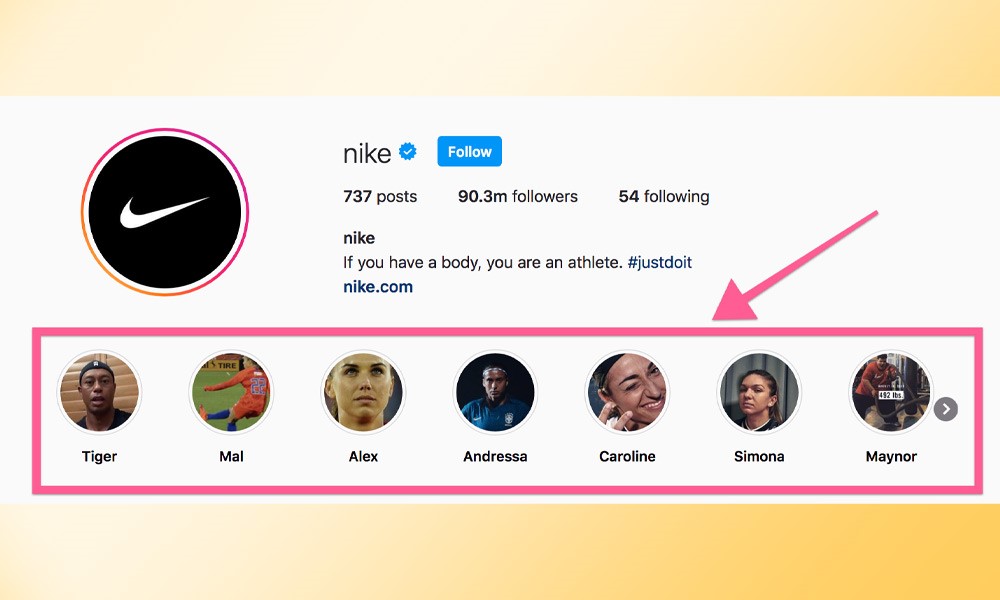
To make your Highlights even more engaging, consider using a social media aggregator to embed them on your website. This will help you showcase your Instagram content to a broader audience and drive traffic to your profile.
You have three methods to make a highlight on Instagram, and in the following section, you can find out about the steps.
How To Make Your Own Story Highlight Cover?
Instagram Highlights are a fantastic way to showcase your favorite Stories beyond their 24-hour lifespan.
A key element of creating engaging Highlights is adding the most eye-catching stories. Let’s dive into the steps to create and customize your Instagram Highlight.
👉First Method: Creating Your First Instagram Highlight
The first method is using the highlight section to create your first Highlight; let’s see the steps.
Before customizing your cover, you’ll need to create a Highlight. Here’s an essential guide:
1.Access Your Profile: Tap the profile icon in the bottom right corner of your Instagram app.
2.Create a New Highlight: Tap the “+” icon to create a new one.
3.Select Stories: Choose the Stories you want to include from your Instagram Archive.
4.Name Your Highlight: Give your Highlight a descriptive name.
5.Skip Cover for Now: Temporarily skip choosing a cover and tap “Add” to create the Highlight.
Voila! You have created the first collections of your highlights on your Instagram profile.
👉 Second Method: Creating a Highlight from an Active Story
Now, considering you have shared a story that has not disappeared, you can make it an Instagram highlight.
If you have a fresh Story you want to add to a Highlight, follow these steps:
1.View Your Story: Tap on the Story you want to highlight.
2.Access Highlight Options: Tap the “Highlight” option at the bottom of the screen.
3.Create a New Highlight: Tap the “+” icon to create a new Highlight.
4.Name Your Highlight: Give your Highlight a name.
5.Add to Highlight: Tap “Add” to save the Story to your new Highlight.
Some users find this method the easiest one; now let’s see whether there are other ways to make a highlight.
👉 Creating a Highlight from Archived Stories
You have to add your previous stories to an Instagram highlight. Of course, it is possible! Let’s see how!
You can also create Highlights from Stories you’ve saved to your Archive:
1.Access Your Profile: Go to your Instagram profile.
2.Create a New Highlight: Tap the “+” icon below your Story Highlights.
3.Select Stories: Choose the Stories you want to include from your Archive.
4.Edit Cover: Tap “Edit Cover” to select a Story frame or upload a custom image.
5.Name Your Highlight: Give your Highlight a name.
6.Add Highlight: Tap “Add” (iPhone) or “Done” (Android) to finalize.
You can also make a highlight on Instagram by adding archived stories. But the fun part is adding a cover that suits your profile theme.
Customizing Your Highlight Cover
How can you customize a highlight cover on Instagram? Here are the steps. We also introduce some apps for better design.
Once you have a Highlight, it’s time to create a standout cover :
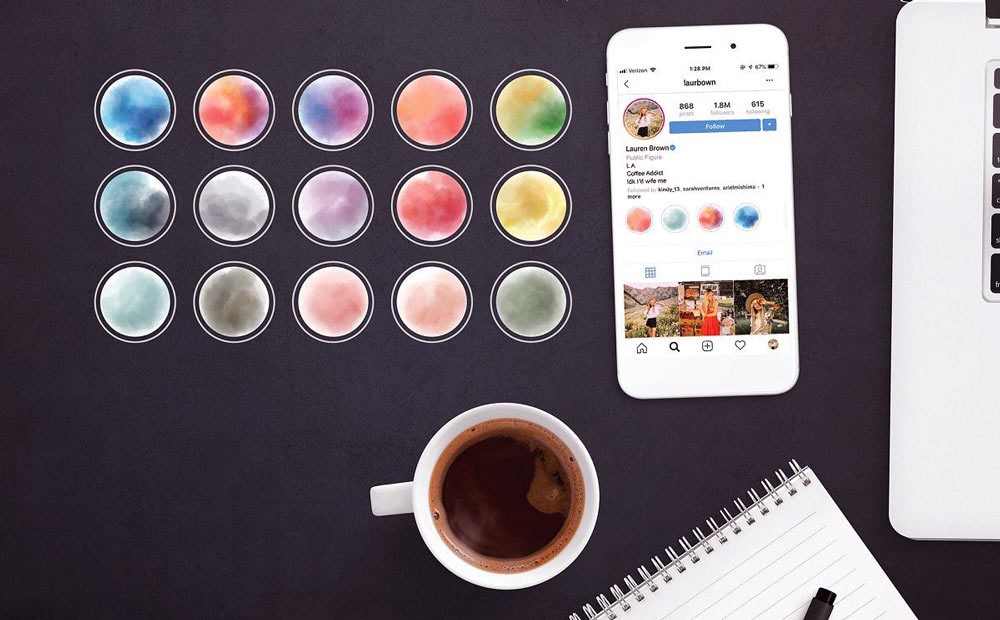
1.Choose a Story Frame: Select an image from the Stories in your Highlight.
2.Upload a Custom Image: Use a visually appealing image that matches your Highlight’s theme.
3.Use a Design Tool: Create custom graphics using design apps for a professional look.
In the following section, we will introduce you to some of the best third-party apps that can be used to make a highlight cover for Instagram.
Top Apps for Creating Stunning Instagram Highlight Covers
Creating amazing and unique Instagram highlight covers can make your profile appealing. Here are some popular apps for both Android and iPhone to help you design impressive covers:
1.Canva: Offers a wide range of templates and design elements for creating professional-looking graphics.
2.PicsArt: This versatile photo editing app also includes tools for designing custom highlight covers.
3.Mojito: Specializes in creating Instagram Stories and offers features for designing highlight covers.
4.Adobe Spark Post: Simplifies graphic design, allowing you to create visually appealing covers quickly.
5.StoryLight: Focuses specifically on designing Instagram highlight covers with various templates and icons.
6.StoryArt: Another dedicated app for crafting Instagram highlight covers with various customization options.
And remember that You can easily edit or delete your Highlights:
✔Add More Stories: Press and hold on the Highlight, tap “Edit Highlight,” select additional Stories, and tap “Done.”
✔Edit Cover: You can change the cover image in the “Edit Highlight” screen.
✔Delete Highlight: Press and hold on to the Highlight, then choose “Delete Highlight.”
Congratulations! Now that you have mastered the Instagram story highlights, you know all these tips and methods.
In Brief
By mastering the art of making Instagram highlights, you can effectively extend the life of your captivating Stories, curate your profile, and enhance your overall Instagram presence.
Highlights offer a fantastic opportunity to showcase your best content, organize your Stories into themed collections, and leave a lasting impression on your audience.
So, use the above apps, create and experiment with different cover designs, and unlock the full potential of Instagram highlights!
Do you have any questions about creating or customizing your Instagram highlights? We are waiting for you in the comments below.