
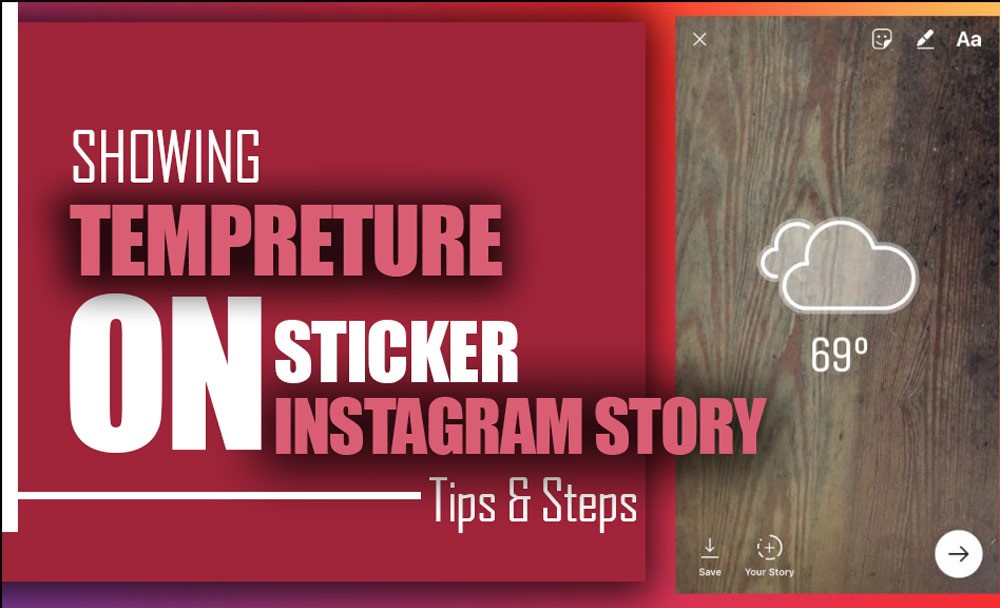

As one of Instagram’s most popular features, Instagram Stories lets users interact by sharing short videos and posts for 24 hours.
Instagram Stories includes several tools to improve the quality of your stories and increase interaction.
Temperature stickers on Instagram are intriguing tools to employ in your Instagram story to inform viewers about the weather where you took the photo or video.
How to Add Temperature to Instagram Story ?
This essay will explain “How to show the temperature on Instagram story?” How to use it, generate appealing, high-quality content to share on your Instagram story, and uplift your Instagram account.
So, to learn how to add Temperature to your Instagram story, follow us in the step-by-step guide.
Full guide to add Temperature sticker to Instagram story
Adding extra items provided by Instagram to your story can be a clever idea to make your content more appealing and informative to the viewers.
You can add effects, stickers, and text to your Instagram story to make it more efficient and effective for your Instagram audience.
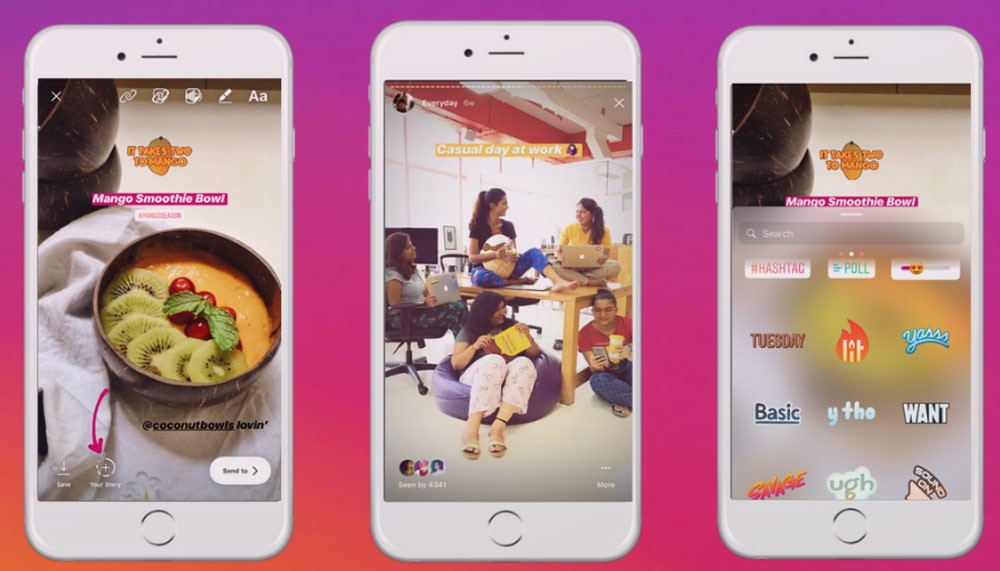
One of the most exciting items on Instagram stories is the ability to add Temperature to your Instagram story.
Whether you are sharing a video or a picture, you can add the Temperature of the place you are into your Instagram story to let viewers know if it is freezing or boiling.
⚡A cute photo deserves an equally cute caption. Explore Baby Shower Captions for Instagram to find the perfect words.
If you are wondering how you can add Temperature to your Instagram story, here is a detailed guide to do it:
1. First of all, open the Instagram app on your mobile device.
2. Then, tap the plus symbol or swipe right on your feed to add a new story. You can take a new photo or video or choose one from your gallery.
3. Once you have your photo or video, tap the stickers icon at the top of the screen.
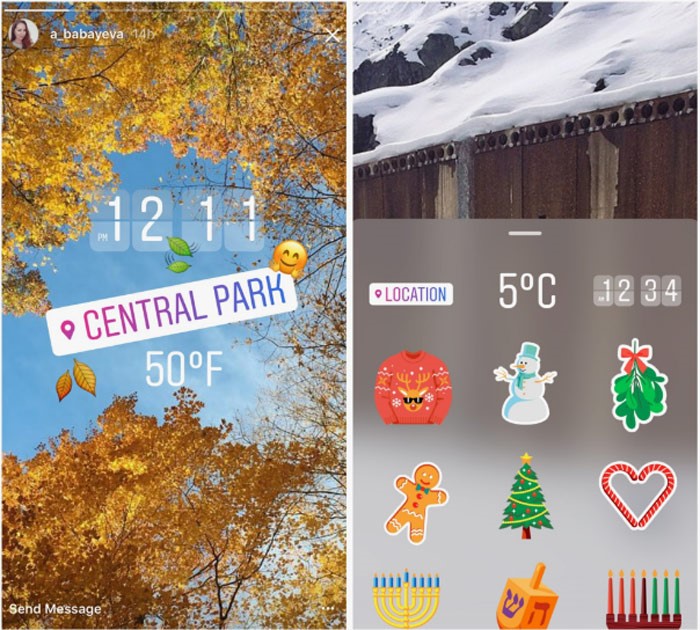
4. Then, In the sticker’s menu, scroll down or use the search bar to find the temperature sticker.
5. Please tap on the temperature sticker to add it to your story. It will display the current Temperature based on your location.
6. You can drag to move, pinch to resize, or tap to change the Temperature from Fahrenheit to Celsius and vice versa.
7. Finally, once you’re happy with the placement and settings, tap Your Story to share it with your followers.
Note: Ensure your device’s location services (GPS) are enabled so the temperature sticker shows the correct Temperature for your location.
- You can enable Android from the quick settings by swiping down from the top of the screen.
- On iOS, go to the Settings app, navigate to Privacy, and then to Location Services to turn it on.
Why is Temperature a valuable tool for Instagram Stories?
Instagram Stories’ temperature feature has a lot of valuable applications. A brief rundown of its many benefits follows:
- Enhances Storytelling: Temperature gives context to your Instagram Story, helping viewers comprehend your experience, particularly in outdoor or vacation images.
- Increases Engagement: Temperature stickers on Instagram can encourage visitors to enjoy, comment on, and share your video in response to surprising or relevant weather circumstances.
- Improves Aesthetics: The Instagram temp sticker can match your story’s design and provide multiple designs.
- Provides Real-Time Information: It provides real-time, relevant information that may make your content seem more current and genuine, strengthening your audience connection.
- Supports Relevance: Businesses can promote winter clothing during a cold snap or in tourist locations with good weather.
- Facilitates Personalization: Showing local weather while sharing moments might bring faraway followers closer to your everyday life.
- Promotes material Variety: Instagram Temperature stickers help you provide unique, intriguing material each time.
Why can’t I find the Temperature in my Instagram story settings?
You can’t find the temperature sticker in your Instagram story settings for several reasons.
Here’s a detailed explanation of possible reasons and solutions for not being able to add Temperature to the Instagram story:
• Location services
Instagram needs to access your location to provide the temperature sticker data. Ensure that your device’s location services are turned on, and if they are not, turn them on, as mentioned before, and open an Instagram account to see if you can see the temperature item now.
• Instagram permission
Check if Instagram has permission to access your location. This can be done in your phone’s settings under the app permissions section.
If Instagram cannot access your location, it will not provide you with location-based data and items such as temperature stickers on Instagram stories.
• Instagram version
An outdated Instagram app may not have the temperature sticker feature. Ensure you use the latest version of the Instagram app and update your Instagram if needed.
You can check for updates on the app store (IOS users) or Play Store (android users).
Updates often include bug fixes and improvements that may address the issue of not having temperature stickers on Instagram stories.
• App cache & corrupted data
Sometimes, the app’s cache can cause issues. Try clearing the cache for the Instagram app in your device’s settings.
By clearing Instagram’s corrupted cache and data and eliminating the unwanted downloaded date, you can resolve Instagram’s problem of not showing temperature stickers on Instagram stories.
•Restart your phone
If the issue persists, try restarting your device to refresh the system and app functionalities.
By restarting our phones, Instagram will refresh unwanted activities, and downloads will stop. See if you can see the temperature sticker now.
• Reinstall Instagram
Uninstalling and then reinstalling Instagram can sometimes fix issues with missing features.
If you cannot find the temperature sticker on the Instagram story, try reinstalling Instagram, but make sure to install the latest update of Instagram and try again.
•Technical glitch or bug
Occasionally, Instagram may experience server issues that affect certain features. In such cases, waiting for a while may resolve the issue.
If you’ve tried all the above steps but are still facing the problem, consider contacting Instagram support for assistance.
Remember, for the temperature sticker to work, Instagram must always have access to your location data.
If you’ve denied Instagram access to your location or have disabled location settings on your phone, the temperature sticker will not appear.
If you’re using an iOS device, go to Settings > Privacy > Location Services, and for Android, go to Settings > Location to adjust these settings.
After ensuring these settings are correct, return to your Instagram story to see if the temperature sticker appears. Suppose it doesn’t follow the additional troubleshooting steps mentioned above.
Conclusion:
Simply put, Instagram stories are a great way to share content quickly. Adding different items can make it more attractive and appealing to Instagram users and engage them more with the shared content.
In this essay, we learned how to show the Temperature on your Instagram story, the possible issues you can encounter, and the potential solutions to not having the temperature sticker on your Instagram story.
Tell us about your experience using the temperature sticker on your Instagram stories. Have you ever used it? What did you use it for?